TradingView Webhook Setup Guide
Use this after you create a webhook in the portal. It shows the exact webhook URL to paste in TradingView, how to create routes, and what message to put in your TradingView alert.
Tip: Click “Print / Save PDF”
Quick Details (copy/paste)
Webhook URL
Webhook ID
If you want a PDF: click Print / Save PDF and choose Save as PDF.
1) Create Route(s) (in portal)
- Dashboard → Routes
- Click Create Route
- Select this webhook and choose your destination (Binance / MT5 / Delta). Telegram/Discord coming soon.
- Enter API credentials (if required) and save
One webhook can have multiple routes (example: Binance Futures + MT5). Telegram/Discord notifications coming soon.
2) Create the TradingView Alert
- Open TradingView chart → click Alert (bell) → Create Alert
- In Notifications tab, paste the Webhook URL
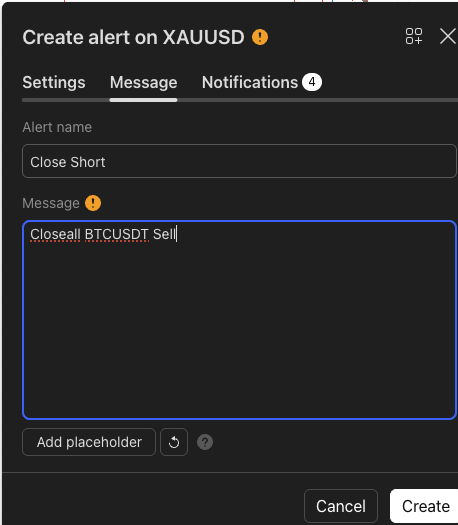
- In Message tab, paste one of the formats below
- Save and enable the alert
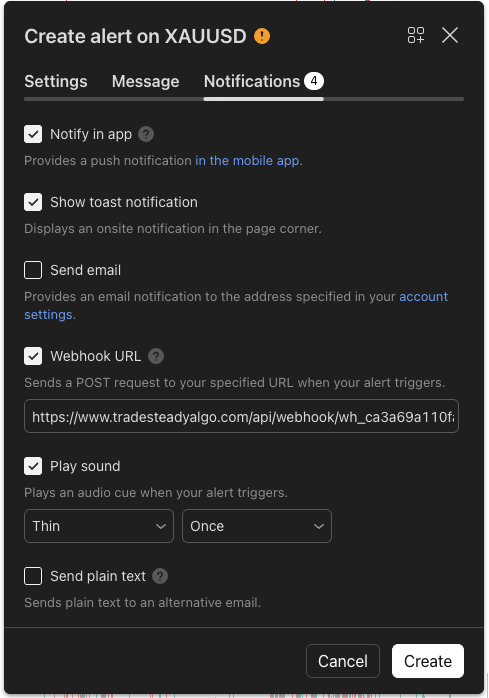
Create Alert dialog – use Notifications tab for Webhook URL, Message tab for alert format.
Paste your webhook URL in the Webhook URL field.
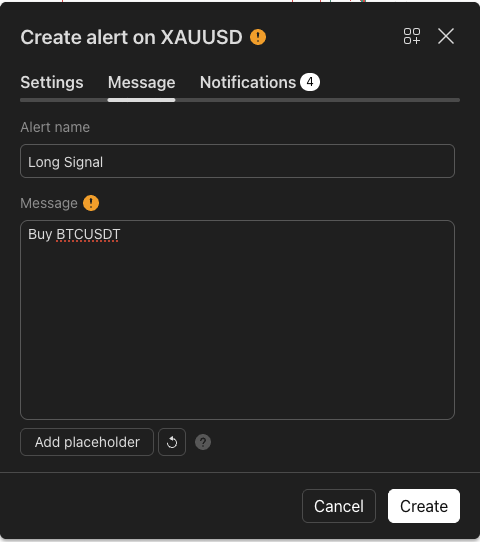
Paste your alert format (e.g. Buy BTCUSDT Q=0.01) in the Message field.
MT5 Setup (only if you route to MT5)
- Create an MT5 route in the portal with your MT5 account number
- Download the EA and install it on your MT5 terminal
- Enable Algo Trading + DLL + WebRequest whitelist
MT5 WebRequest whitelist URL should be your server base URL (shown above).
3) TradingView Alert Message (copy/paste)
Choose based on your TradingView alert type:
Strategies — Use dynamic placeholders. TradingView fills
{{ticker}} and {{strategy.order.contracts}} when your strategy executes.Long {{ticker}} Q={{strategy.order.contracts}} SL=2% TP=5%
JSON (optional):
{
  "action": "{{strategy.order.action}}",
  "symbol": "{{ticker}}",
  "quantity": {{strategy.order.contracts}},
  "stop_loss": {{strategy.order.stop_loss}},
  "take_profit": {{strategy.order.take_profit}}
}